GEM Daily Attendant Operations Manual
Overview
This manual provides standard procedures for daily attendants managing guest check-ins, onboarding, and device handling at a location using GEM.
Daily Startup Procedure ⚡
Before the venue opens:
1. Power on all PC, tablet or mobile device that you will be using to run the GEM Dashboard.
- On each device, verify dashboard setup:
- open the GEM Dashboard in a browser (https://
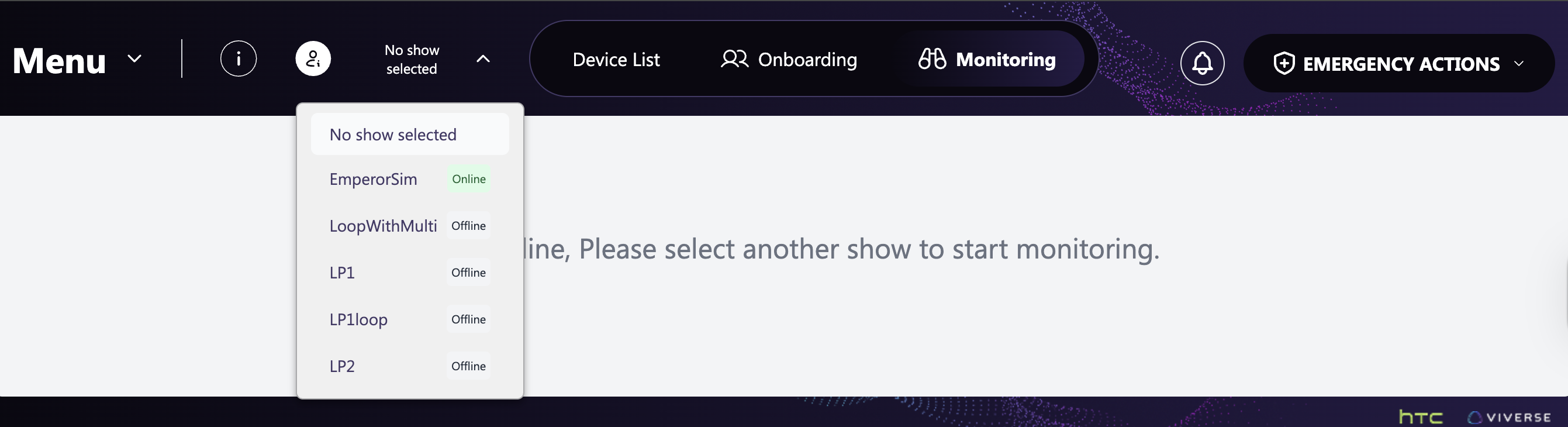
- Make sure that the correct show is selected in the dropdown menu in the upper left.
- Make sure that the dashboard shows the selected show as "Online".
- Notify your operator if the show is not displayed as "Online".
- open the GEM Dashboard in a browser (https://
-
Verify the show is correctly reset to start the day.
- Check the Notifications panel and make sure no notifications are present. ⚠️
- If notifications are shown, clear them one by one by selecting the Clear button
- On the Onboarding section of the dashboard:
- The Onboarding Queue must be empty.
- If teams are shown, select Leave Queue from each team's menu
- The Onboarding Area must be empty.
- If groups are shown, select Leave from each group's menu
- The Onboarding Queue must be empty.
- On the "Monitoring" section of the dashboard:
- Each zone in the dashboard must show Unassigned Zone. If users are shown, select Leave from the zone menu.
- The active Group section must be empty.
- Check the Notifications panel and make sure no notifications are present. ⚠️
-
Check the devices:
- Make sure all VR headsets are powered on. 🎧
- Make sure all batteries and devices are charging as necessary
- In the GEM Dashboard open the Device List
- Selecting PostExperience should show no devices. If devices are shown, locate them, make sure they have been cleaned, and mark them as Processed.
- Selecting InExperience should show no devices. If devices are shown, locate them and manually reboot them.
-
Notify the technical operator of any unexpected issues or dashboard errors that are not addressed above.
Guest Interaction Workflow 👥
Guest Arrival
- Guests may arrive with digital or printed tickets, or may purchase tickets if available onsite.
- After tickets are verified or purchased, attendants may direct guests to sign up with the signup app.
Sign-Up Process
- Guest can sign up by entering their name, language, and team name.
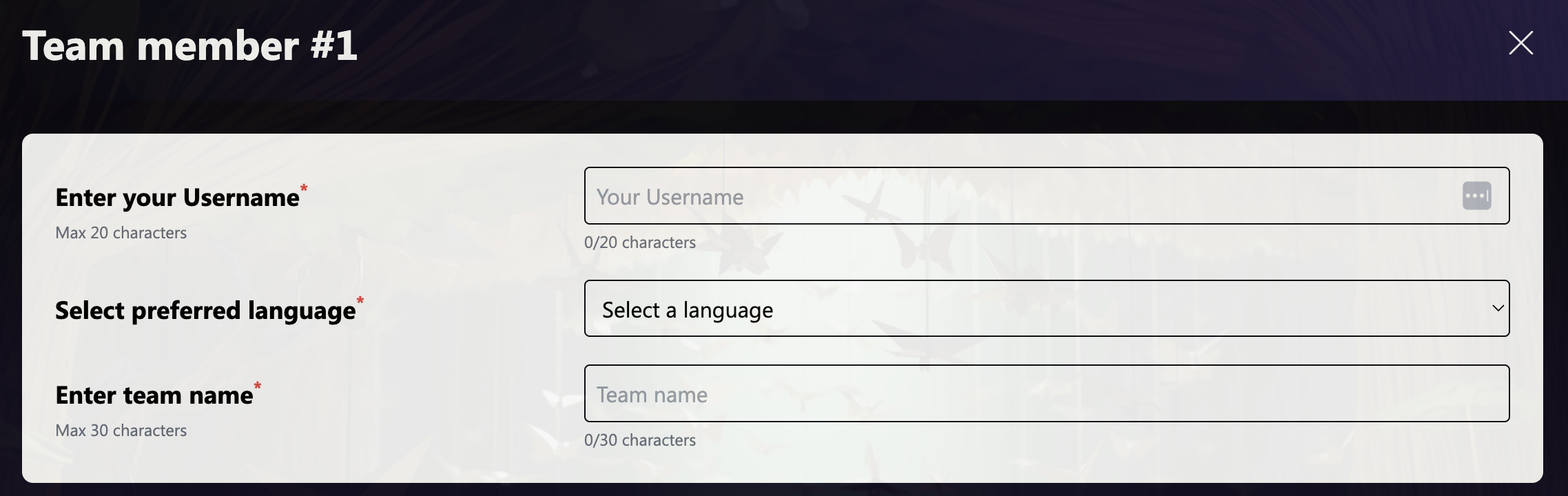
- Guests who come together may sign up as a team.
- Guests receive a printed QR code sticker upon ticket purchase.
- Attendant support is not required for sign-up.
- Guests may leave the area after signing up and return later.
Check-In 🎟️
- When ready to see the show, guests approach the suit-up area and present their QR code sticker.
- Attendants with mobile devices can access the mobile dashboard with the same URL that attendants use to monitor the stage (https://siterunnerIP:port).
Mobile Quick Actions Menu
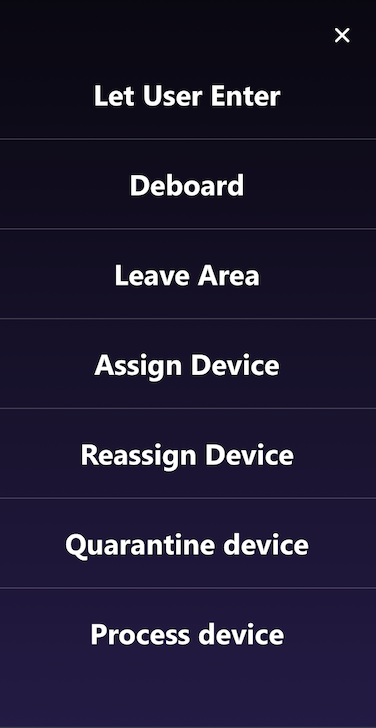
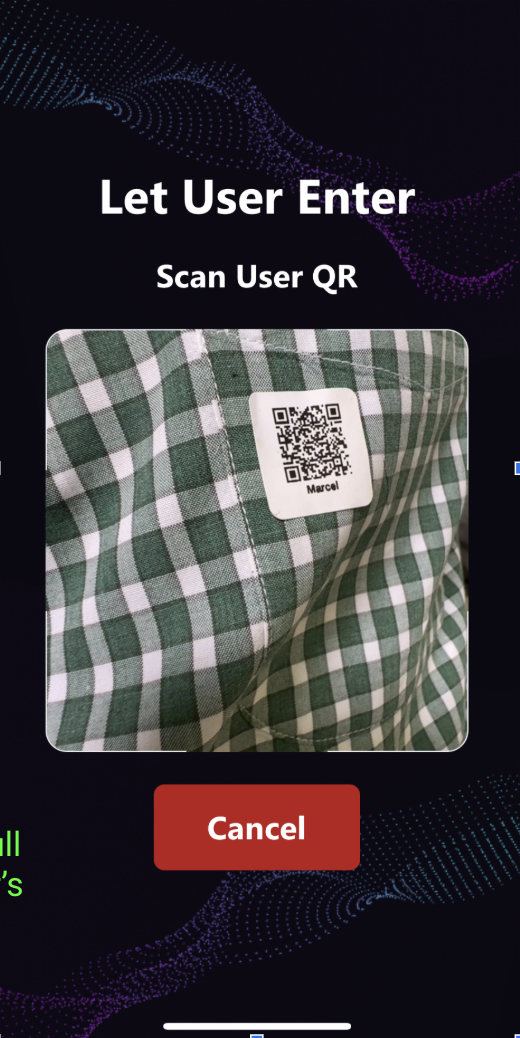
- Attendants can use the quick actions menu and select the "Let User Enter" option via the GEM Dashboard. The camera will allow the Attendant to scan QR codes. Codes are scanned automatically once the QR Code is visible.
- Attendants can continue to scan QR Codes without reopening or restarting the app.
- This can be repeated for each guest.
-Once Guest tickets are scanned, they will be put in a queue.
Mobile QR to let users enter
Waiting ⏳
- Once users are scanned in, they can wait in a waiting area.
- A Monitor with the Queue will display a list of users onboarding and a list of users that are up next.
Queue Management
- Use GEM Dashboard Quick Action menu on a mobile browser to scan and queue guests.
- Ensure guests are scanned in upon return to join the queue.
- GEM will automatically merge guests to maximize throughput.
- GEM automatically combines guests to keep groups full and the line moving. When an attendant scans a ticket with "Let User Enter," the guests go into the waiting line. GEM then groups them on its own, no extra steps needed from the attendant. The queue screen shows the team names that are up next.
Keep in mind, every experience has a different maximum group size. For this example, we will say the group max is six people per group:
- Eric and Tina arrive and sign up as “Team-Tina.” Mark and Jane sign up as “Team-Blue.” Cindy and Carla sign up as “Team-CC.”
- When they’re ready to start, each team tells the attendant. The attendant scans their tickets using the “Let user enter” option.
- After they enter, GEM automatically combines smaller teams to make full groups of six people, no extra work from the attendant.
-
When the stage is ready, the queue shows
“Up Next: Team-Tina, Team-Blue, Team-CC.” -
This means GEM found three teams of two and put them together to make one group of six.
- All three groups go to the attendant to get headsets. The attendant scans each person’s ticket and their headset to begin the experience.
More on Merge
As an option, an operator can merge two teams into one by clicking on the merge action while the teams are in the queue, before headsets are assigned. This will open a modal with all available teams that can be merged.
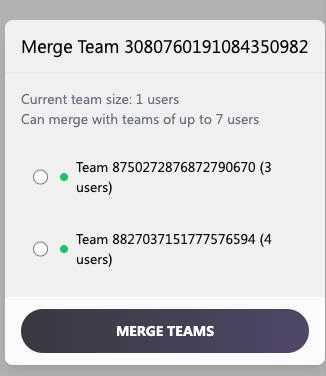
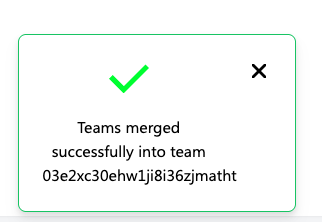
Once the 2 teams have been successfully merged, a dashboard notification > will display for a few seconds specifying that the merge has been > successfully completed
Headset Handling & Assignment
Storage
- Headsets are stored to the side and distributed by attendants.
- Backup headsets and batteries are stored in the same area.
Assignment
- Each headset has a unique QR code.
- Ensure all headsets have sufficient battery to complete the experience, if not, replace.
- Headsets are assigned to groups in the order they appear in the Queue on the dashboard.
- Headsets are only assigned to people if the group is complete (all members have checked in).
- If the top group in the queue is not all present yet, start assigning to the first group in the queue that is.
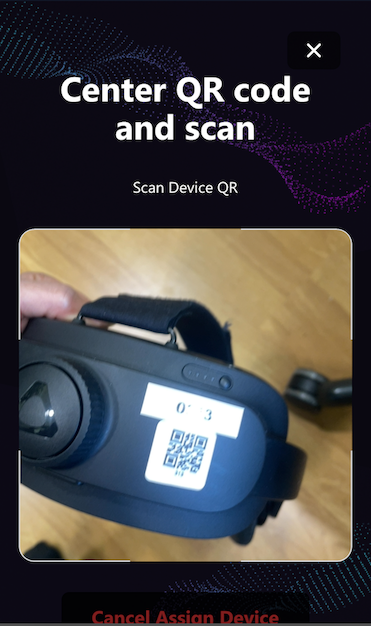
- To assign headsets, scan the guest ticket and device QR Code using the Assign Device action from the GEM Mobile app.
- If a user is wearing a hat or other personal items that will make it difficult to go through the experience, the attendant should instruct the user to go put them in a personal item storage area before assigning headsets to any members of that group.
- Scanning users and device QR code links the headset to the guest for session monitoring.
- After each task, attendants should check for alerts on the dashboard to ensure that people who are already in the experience are not having problems.
Suiting up
- The suit-up area has one or more areas where the group that will be going through the experience together is to gather and put their headsets on. These are called "slots".
- When the first person of a signup group in the queue is assigned a headset, that group is assigned to a signup slot.
- If there is only one signup slot in the area, then no issue, but if there are multiple signup slots. They need to be directed to that signup slot.
- The attendant, when directing them to the suit-up slot should tell them that other guests might be joining their group.
- The attendant should tell them that if they need help during the suit-up process, they should raise their hand.
Tutorial & Briefing 📚
Before Experience Start
- Provide a 30-second in-person briefing:
- Assist guests in properly putting on headsets
- Instruct them to follow the instructions in the headset
In headset tutorial
- While in headset, guests will be provided a tutorial
During Experience
- Monitor the GEM dashboard for guest status and progress.
- Watch for guests raising their hands for assistance.
- Occasionally, guests will need their batteries replaced during the experience. Attendants are required to hot-swap batteries when needed.
Troubleshooting & Swapping Devices 🛠️
Common Issues
- If a device is unresponsive or the guest reports issues:
- Replace the headset with a backup device.
- Reassign using the 'Reassign Device' feature in the mobile GEM Dashboard using the QR codes on the devices.
Post-Swap Handling
- Move faulty headsets to a designated tech review area.
- Technical operators will inspect and service devices if needed (issues that arise usually only require an app reboot).
End of Session Procedures
- Guests will receive deboarding instructions via the experience in the headset.
- Attendants assist only if the guest raises their hand or appears confused.
Attendant Responsibilities Summary
- Greet returning guests and scan them into the queue.
- Distribute and assign headsets.
- Provide light briefing on device fitting.
- Monitor dashboard and respond to raised hands.
- Replace faulty device as needed.
- Hot swap batteries on devices for guests when needed.
- Maintain guest flow and throughput.
Equipment Handling Notes
- Sanitize headsets after each session (wipe foam, lens, and touch surfaces).
- Place faulty headsets into the designated tech bin for review.
- Always have backup devices and batteries ready.
Quick Reference Checklists ✅
Daily Opening
- Launch experience with GEM to ensure connectivity.
- Verify headsets and backups are charged and ready.
- Check mobile device is connected to GEM Dashboard.
Per Guest
- Scan QR sticker to check in.
- Assign headset by scanning user and Device QR via GEM.
- Assist with headset fit and provide a brief intro.
Troubleshooting
- Replace headset if issues arise.
- Place faulty headset in tech review bin if restarting doesn't resolve issue.
End of Day
- Sanitize all headsets.
- Return backups to charge.
- Report any issues to the technical team.