In Editor
IMPORTANT:
This workflow will wipe your GEM Database. It is heavily recommended to have a postgresql database connected to GEM that is not in a production environment.
Testing within Unity Editor
You can test your Experience in-editor with or without GEM by utilizing Unity's Playmode scenarios.
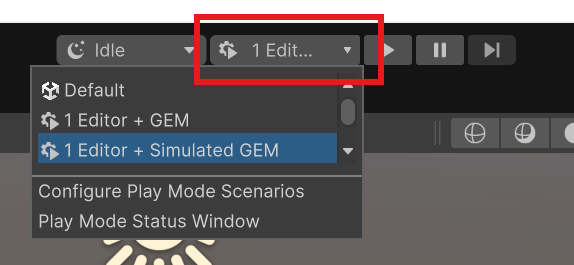
If your project is configured correctly (see Project Setup), you will have 4 automatically created scenarios to choose from next to the Play button:
 {width="287" height="133"}
1 Editor + Simulated GEM -> See 1. Simulating GEM
1 Editor + GEM -> See 2. Using GEM
3 Editors + Simulated GEM -> See 3. Multiple Clients
3 Editors + GEM -> See 3. Multiple Clients
1. Simulating GEM
To allow development without requiring every developer to install and run GEM, the simulated GEM scenarios return all GEM API calls with fake successful return values, making the Plugin think that it is communicating with a real GEM server.
- Select the "1 Editor + Simulated GEM" Scenario.
- Hit the Play button.
- Unity will launch a 2nd Editor instance. This instance serves the purpose of the Gameserver and handles all RPC calls as the dedicated server.
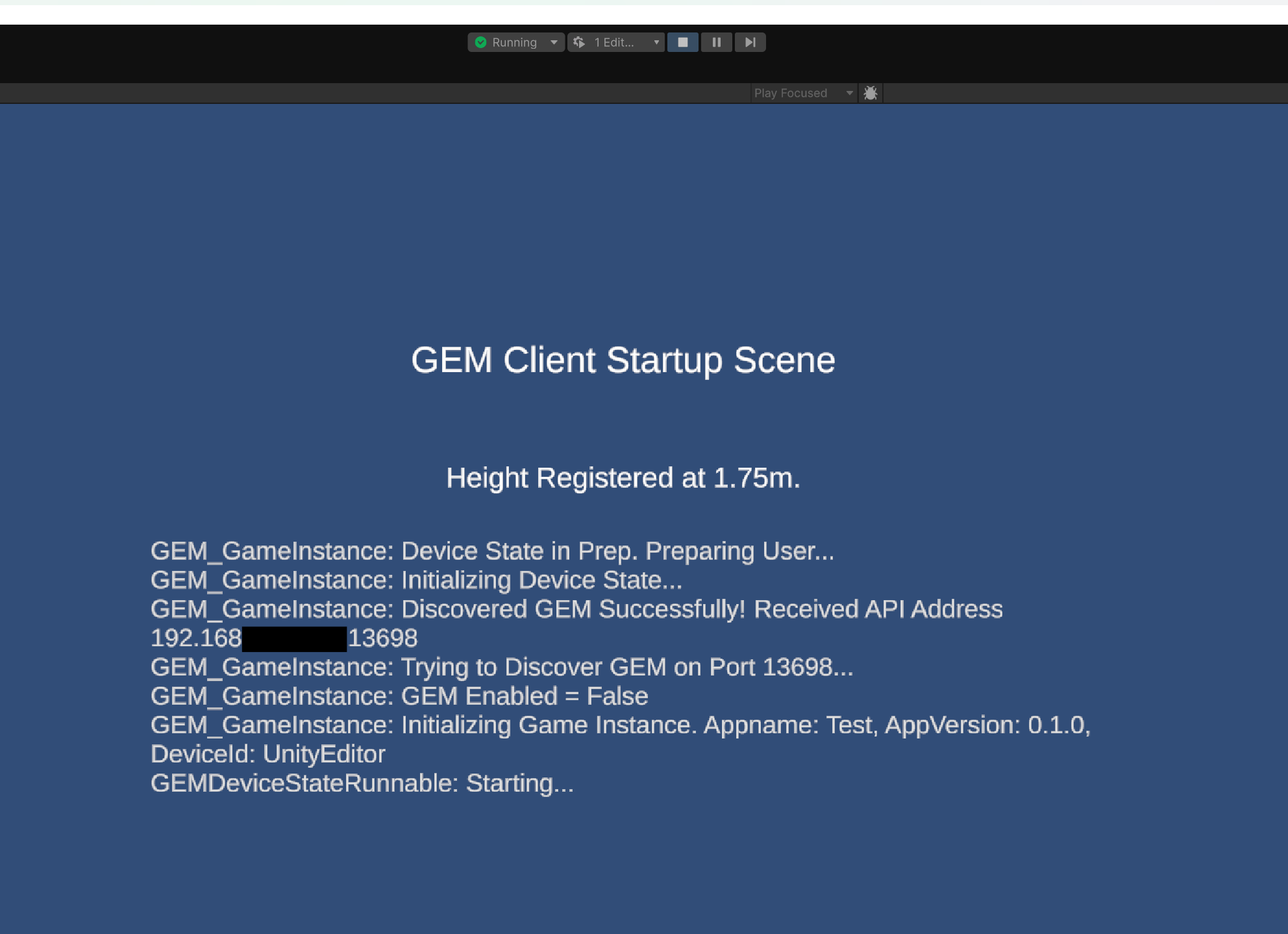
- a. The main Editor will start in the Startup_Client scene and automatically perform the height calibration in an accelerated type.
 {width="992" height="719"}
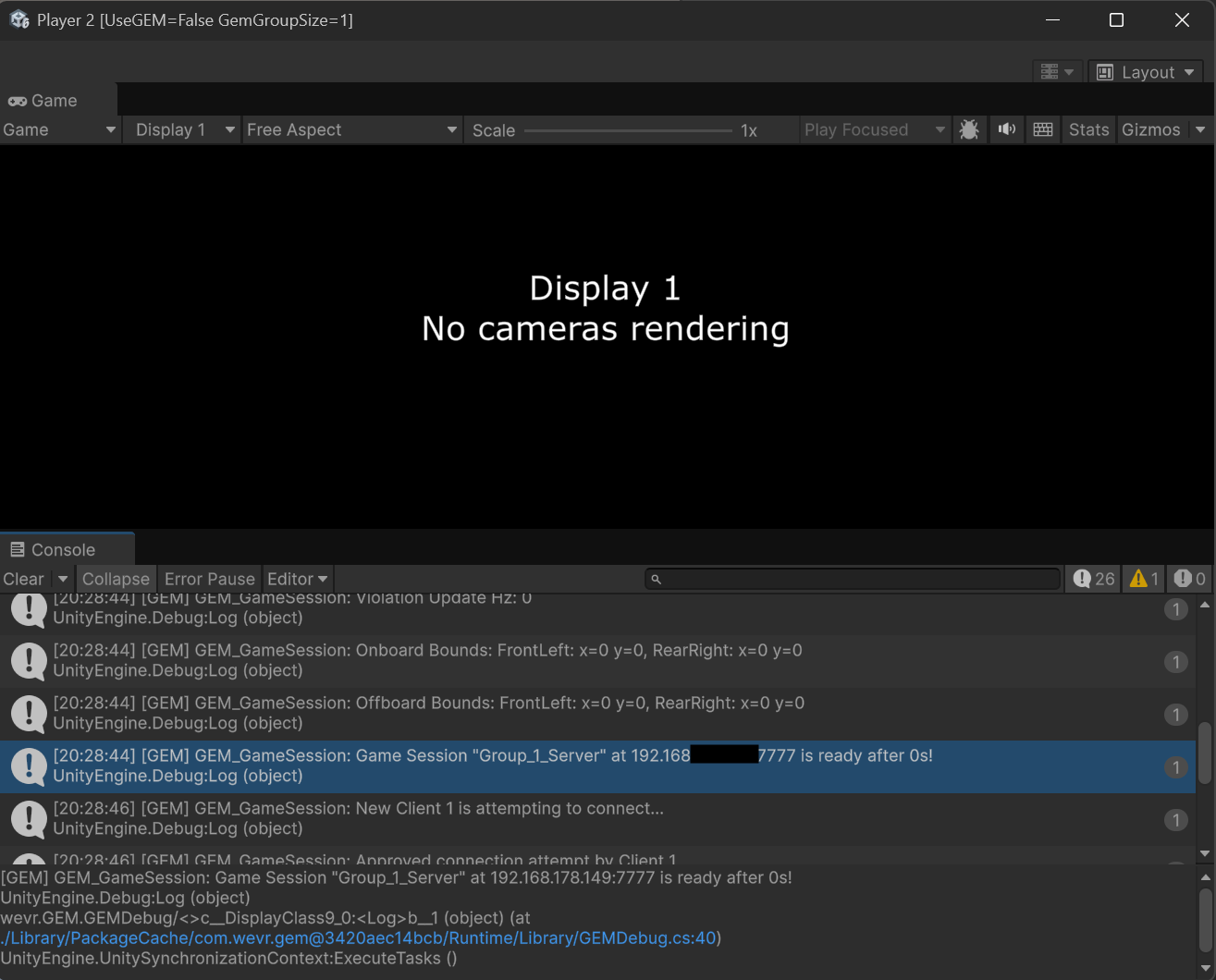
b. The server will start in the Startup_Server scene and initialize itself, as can be seen in the console of the second Unity instance.
 {width="658" height="530"}
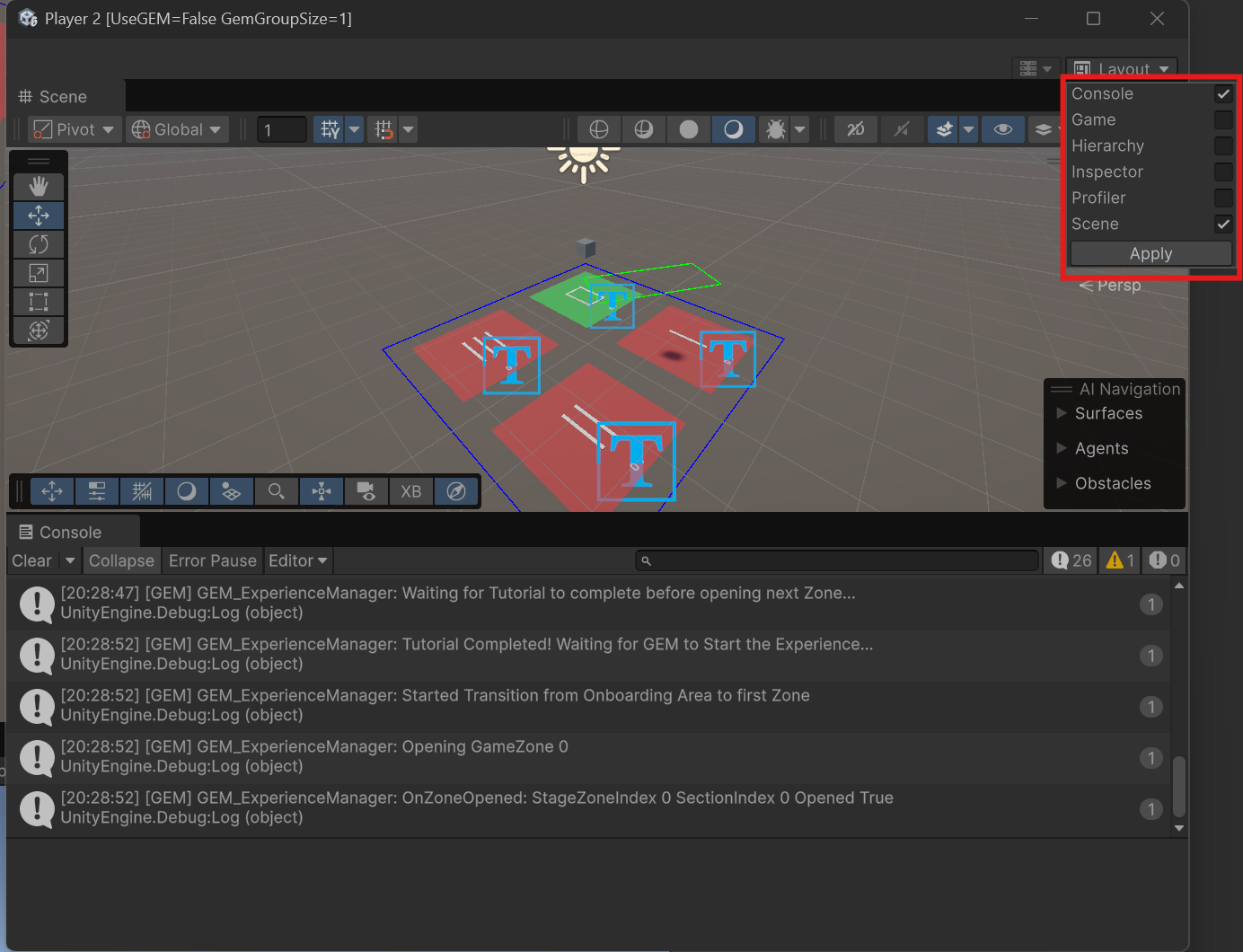
5. I recommend to change the Server instance's Layout to "Console" and "Scene" to be able to visualize what is happening on the Dedicated Server.
{width="658" height="530"}
5. I recommend to change the Server instance's Layout to "Console" and "Scene" to be able to visualize what is happening on the Dedicated Server.
 {width="692" height="530"}
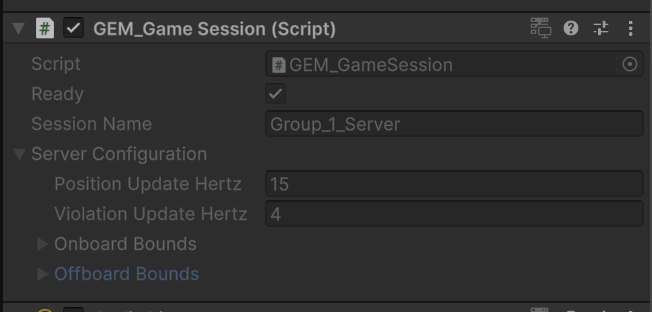
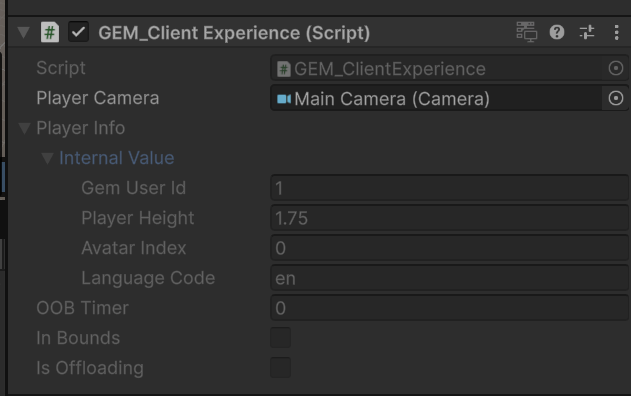
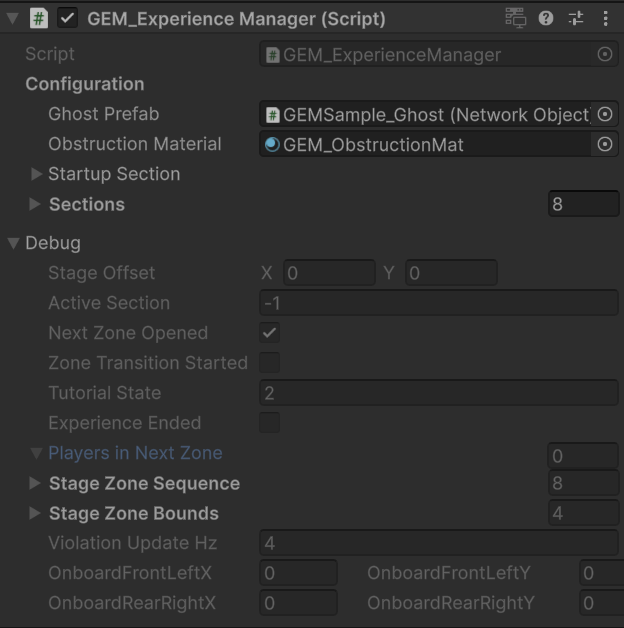
You can also enable "Hierarchy" and "Inspector" to view and debug the scene in realtime, such as by reading inspector values. Some examples of observing GEM components during runtime:
- GEM_GameSession is populated with the session name and update frequencies.
 {width="326" height="156"}
* GEM_ClientExperience is populated for each player pawn with their UserID and bounds state.
{width="326" height="156"}
* GEM_ClientExperience is populated for each player pawn with their UserID and bounds state.
 {width="316" height="198"}
* GEM_ExperienceManager is populated with the experience information, e.g. the currently Active Section and the players that are in the next zone.
{width="316" height="198"}
* GEM_ExperienceManager is populated with the experience information, e.g. the currently Active Section and the players that are in the next zone.
 {width="312" height="314"}
- You can now focus the "Game" view on your Main editor and play your experience. The default SamplePawn is configured to allow you to move with WASD + Mouse. Middle Mousclick toggles mouselock and CTRL+D forces your player to disconnect, returning it to the Startup_Client scene which in turn will quickly reconnect it to the server, with which you can test and verify rejoining.
2. Using GEM
It is possible to play the experience in-editor with real GEM communication. This is primarily useful to ensure API calls are triggered and returned correctly, but is less optimal for quick development due to the longer startup sequence. This also allows you to test in-editor with the Dashboard and Slideapp, such as by triggering emergency passthroughs or deboarding commands directly to the editor session.
This mode requires you to have GEM installed on your local machine, see GEM Overview and Getting Started. You can verify a correct installation if you open a CMD and writing "gem" and "gem-server". If those commands do not return successfully, this playmode scenario will not function.
- Select the "1 Editor + GEM" Scenario.
- Hit the Play button.
- Unity will launch similarly to section 1. 'Simulating GEM' however, Unity will in addition launch a .bat file that initialized commands with GEM.
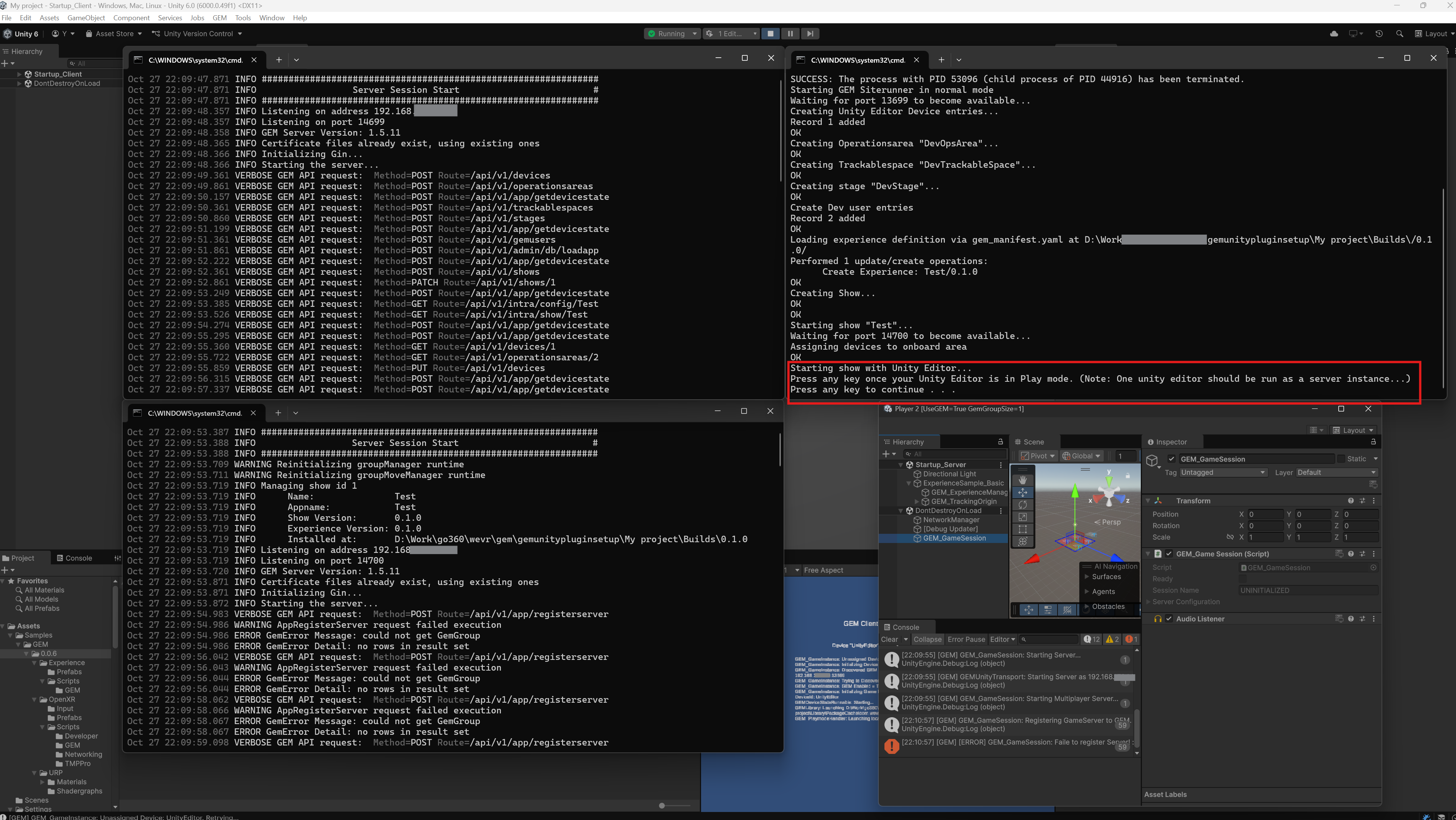
- Wait for the other instance to finish loading. The CMD running the .bat file should prompt to press any key once all unity editors have entered play mode. Select the CMD and press any key to continue the bootup sequence.
 {width="1906" height="1073"}
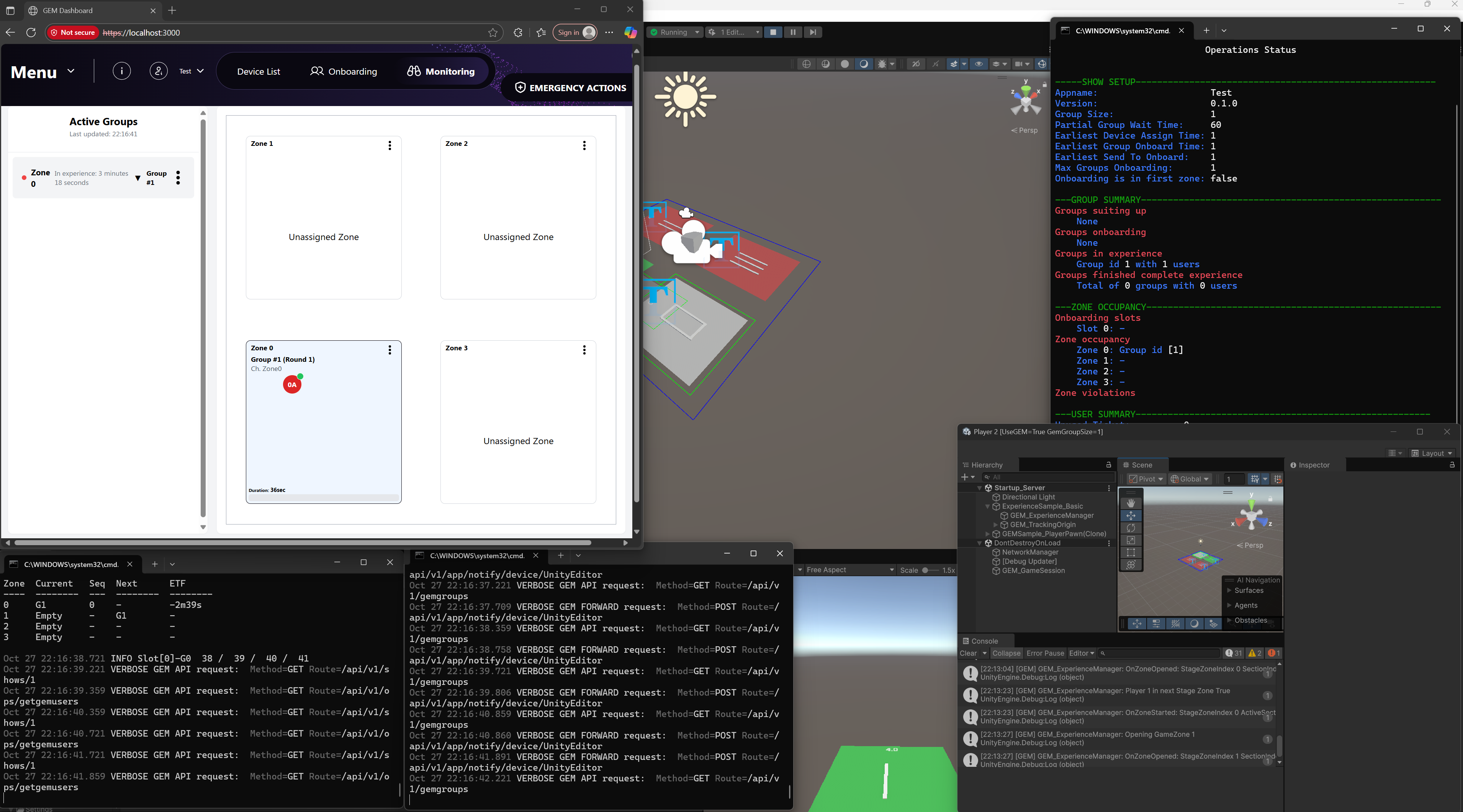
5. If everything works correctly, you will have the same result as section 1, but with three CMD's running in addition to the Editors (The Siterunner, The Showrunner and a cmd operator window). You can now also observe the experience in realtime from within the UnityEditor via the GEM Dashboard by connecting to https://localhost:3000
{width="1906" height="1073"}
5. If everything works correctly, you will have the same result as section 1, but with three CMD's running in addition to the Editors (The Siterunner, The Showrunner and a cmd operator window). You can now also observe the experience in realtime from within the UnityEditor via the GEM Dashboard by connecting to https://localhost:3000
 {width="1910" height="1061"}
6. In this workflow, you can now test GEM API calls such as emergency messages, forced offboarding and app shifting.
{width="1910" height="1061"}
6. In this workflow, you can now test GEM API calls such as emergency messages, forced offboarding and app shifting.
3. Multiple Clients
Workflow 1 and 2 respectively have a "3 Editors" variant. These scenarios behave the same as scenario 1 and 2, with the difference that in addition to the extra UnityEditor instance being launched for the Dedicated Server, two additional UnityEditor instances are launched and configured as additional Players. This allows you to test your experience in-editor with 3 clients simultaneously with or without GEM respectively, and is the max amount of Editor Instances allowed by the Playmode Scenarios Plugin. Testing with more than 3 Players requires testing with builds, see Testing the Plugin In Windows.