In Windows
IMPORTANT:
This workflow will wipe your GEM Database. It is heavily recommended to have a postgresql database connected to GEM that is not in a production environment.
Testing with Windows Clients
You can test your Experience in windows with or without GEM by utilizing the GEM Launcher window. This allows you to test Builds and to test with more than 3 clients and more than 1 groups.
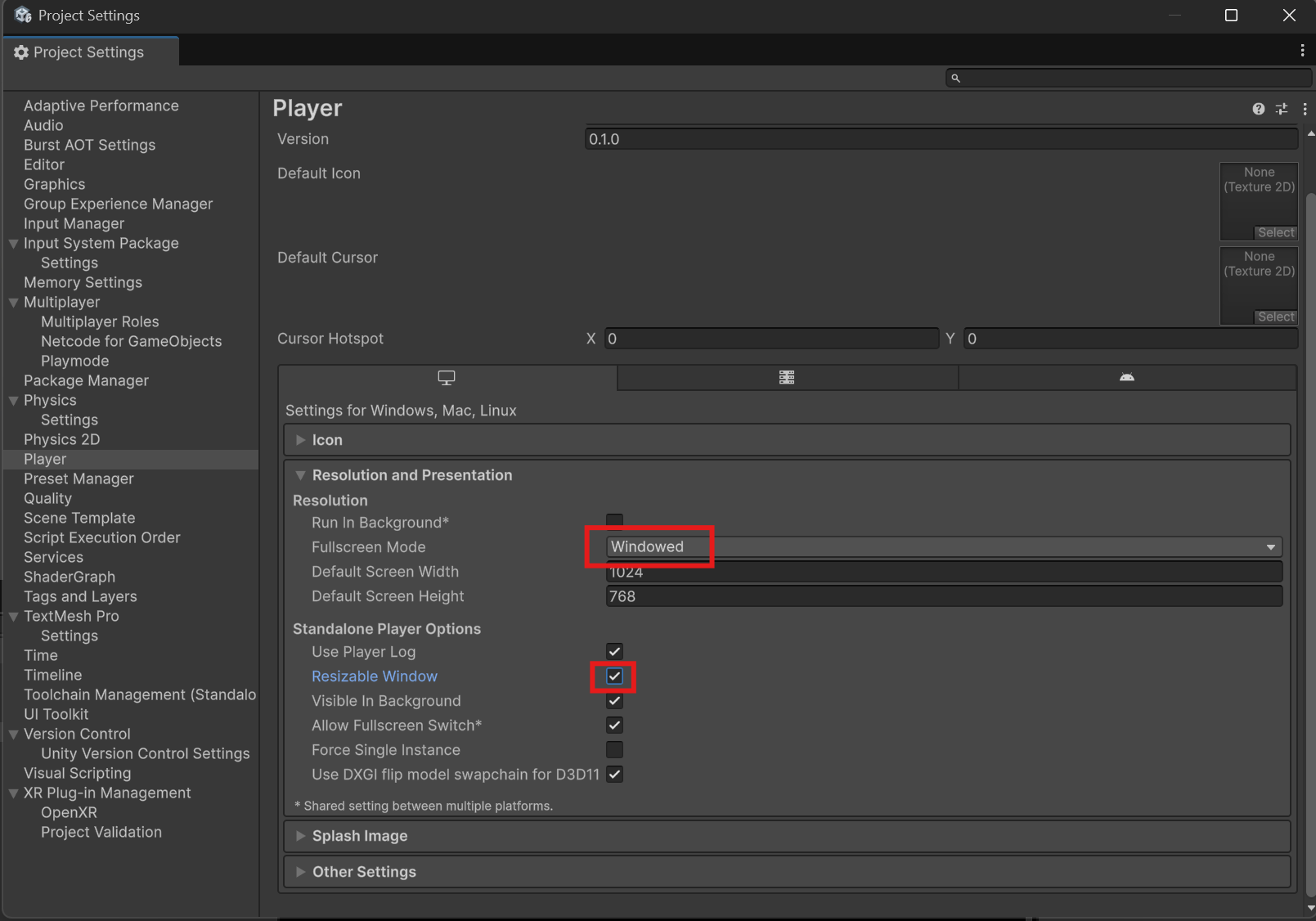
- (Optional) I recommend to configure your Project Settings -> Player -> Resolution and Presentation for Windows to be "Windowed" as Fullscreen Mode and to allow "Resizable Window" in order to more easily manage multiple clients.
 {width="805" height="563"}
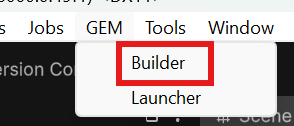
- You need to build a windows Server and windows Client target. Navigate to GEM -> Builder to open the GEM Builder.
 {width="147" height="63"}
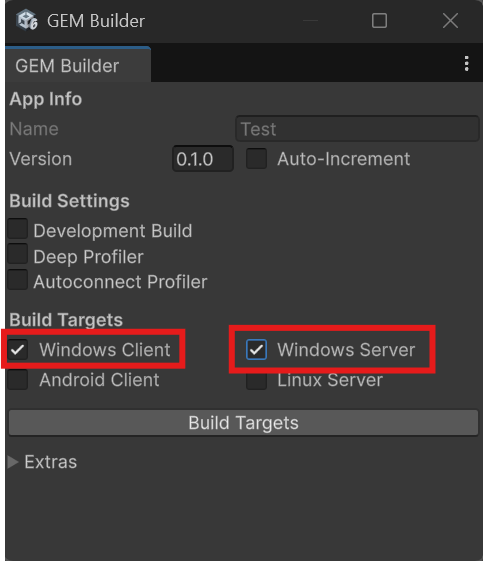
- Check "Windows Client" and "Windows Server". Afterwards, hit "Build Targets". This auto-configures the export directory for a GEM Experience and generates the gem_manifest.yaml required by GEM.
 {width="242" height="281"}
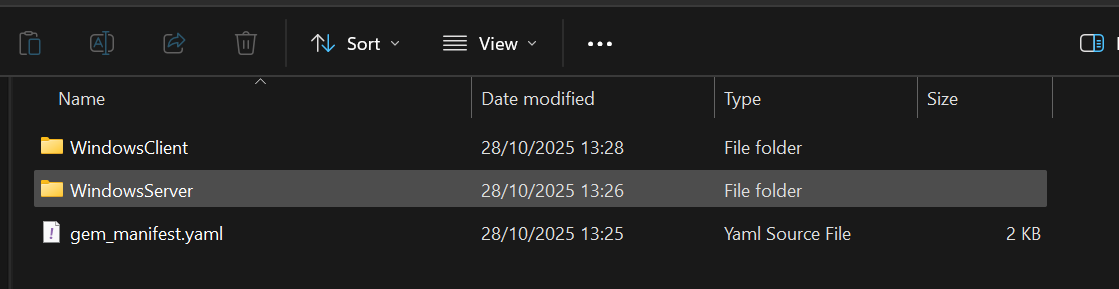
- If the build was Successful, your Explorer will open and show a WindowsClient folder, a WindowsServer folder and a gem_manifest.yaml.
 {width="560" height="145"}
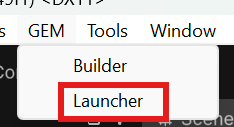
- Navigate to GEM -> Launcher
 {width="117" height="64"}
Without GEM
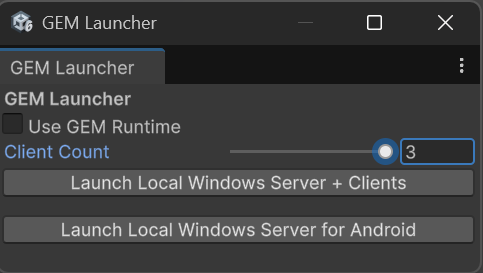
- Uncheck "Use GEM Runtime" if it is checked.
- Select the amount of Clients that you would like to launch. The maximum amount is defined by the "Max Players" in Project Settings -> Group Experience Manager.
- Hit "Launch Local Windows Server + Clients
 {width="242" height="137"}
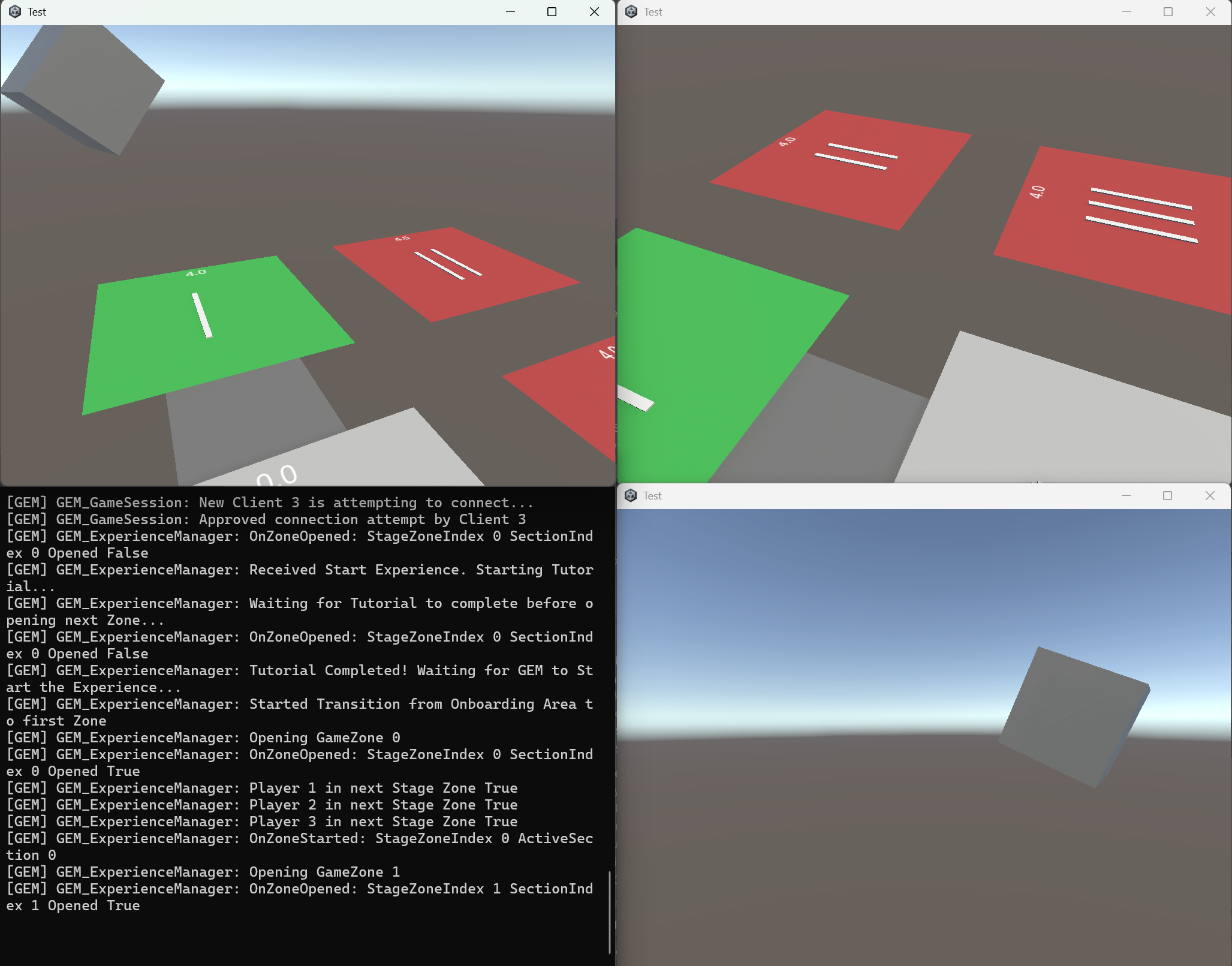
You should now be able to observe the amount of clients selected launching and a dedicated server instance being launched with GEM Simulation enabled. You can now test your multiplayer functionality if you have Desktop controls (e.g. the example pawn allows you to move with WASD + Mouse).
 {width="1028" height="806"}
With GEM
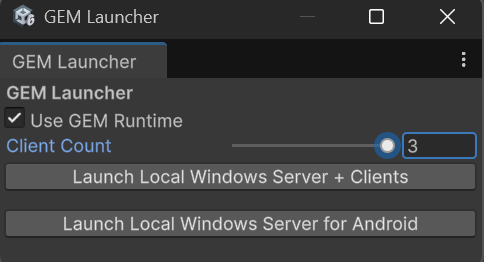
- Check "Use GEM Runtime" if it is unchecked.
- Select the amount of Clients that you would like to launch. The maximum amount is defined by the "Max Players" in Project Settings -> Group Experience Manager.
- Hit "Launch Local Windows Server + Clients"
 {width="242" height="131"}
You should now be able to observe that a CMD window is launched which wipes your GEM Database and initializes it new for testing before launching the windows clients and the GEM Siterunner and GEM Showrunner.
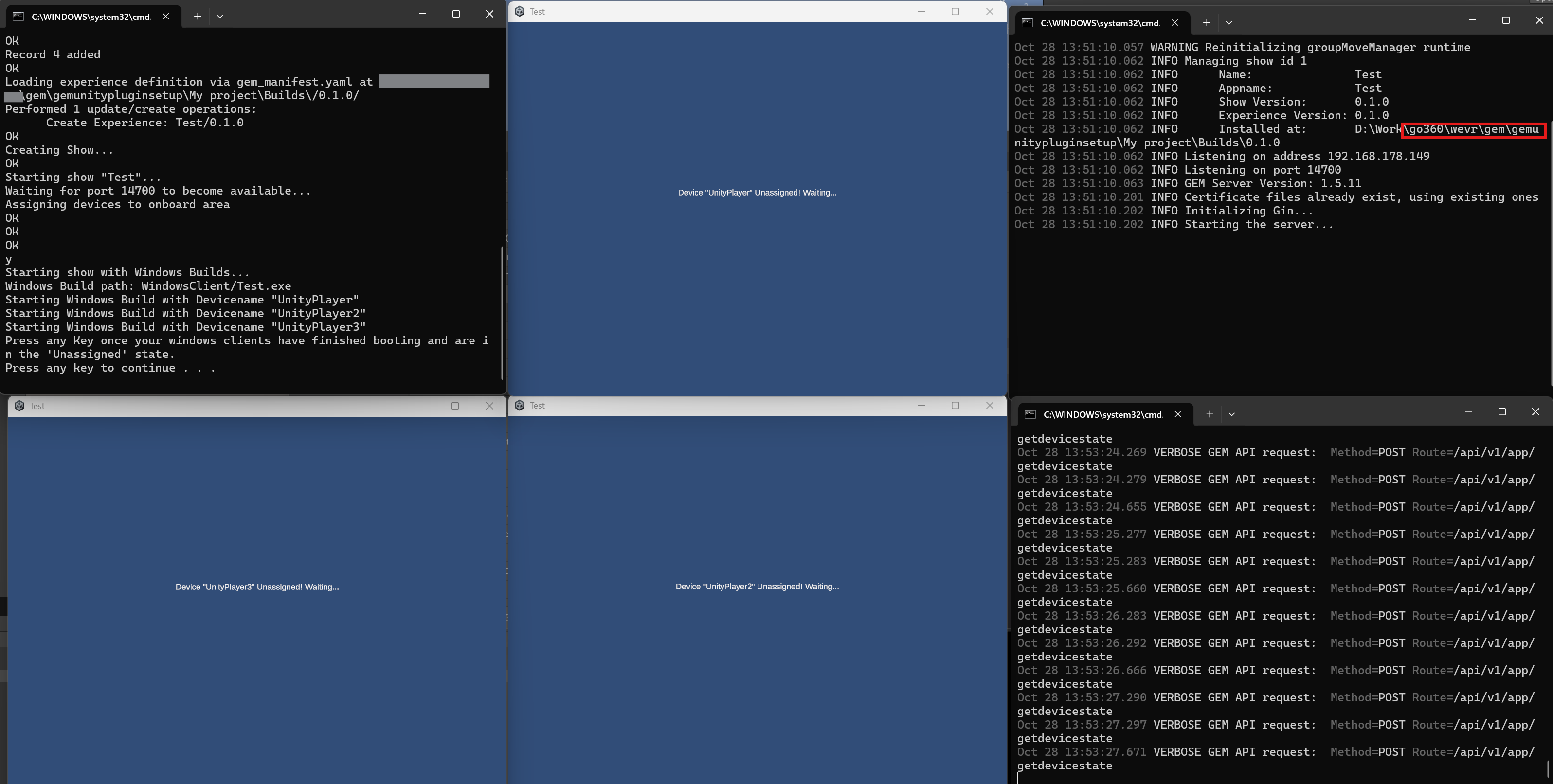 {width="1596" height="806"}
- Wait until all windows clients have finished launching, then press any key on the CMD to proceed. This step is manual since different builds can take different times to boot up, and all clients have to be in "Unassigned" state before the automation script can continue.
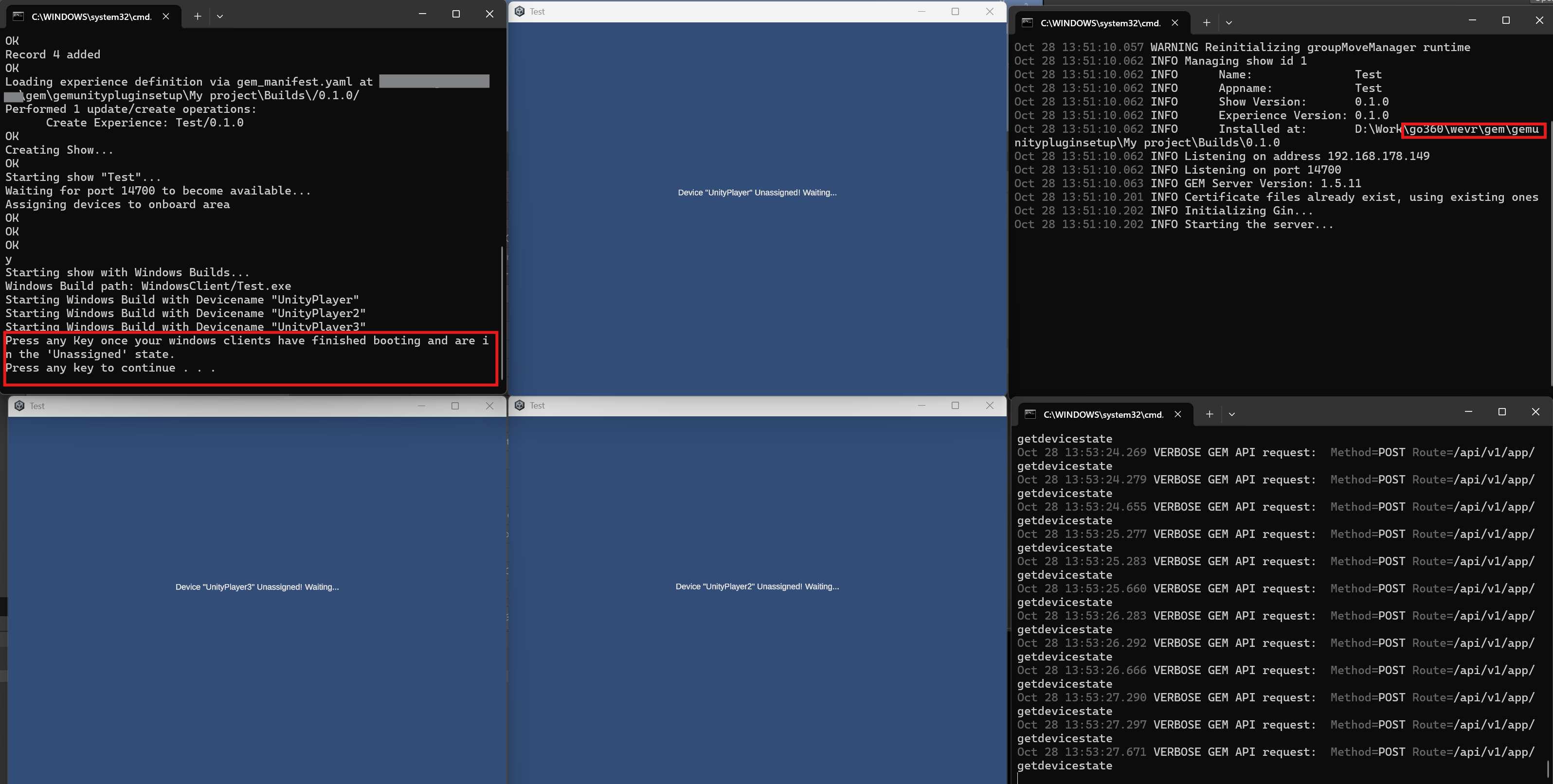 {width="1596" height="806"}
Afterwards, you can see how each client calibrates it's height and then launches the Experience. You can now observe the experience with the GEM Dashboard. Additionally, a powershell is opened that displays the server Log in realtime for easier debugging, since the Unity Server Log is hidden by GEM due to GEM launching it as a subprocess.
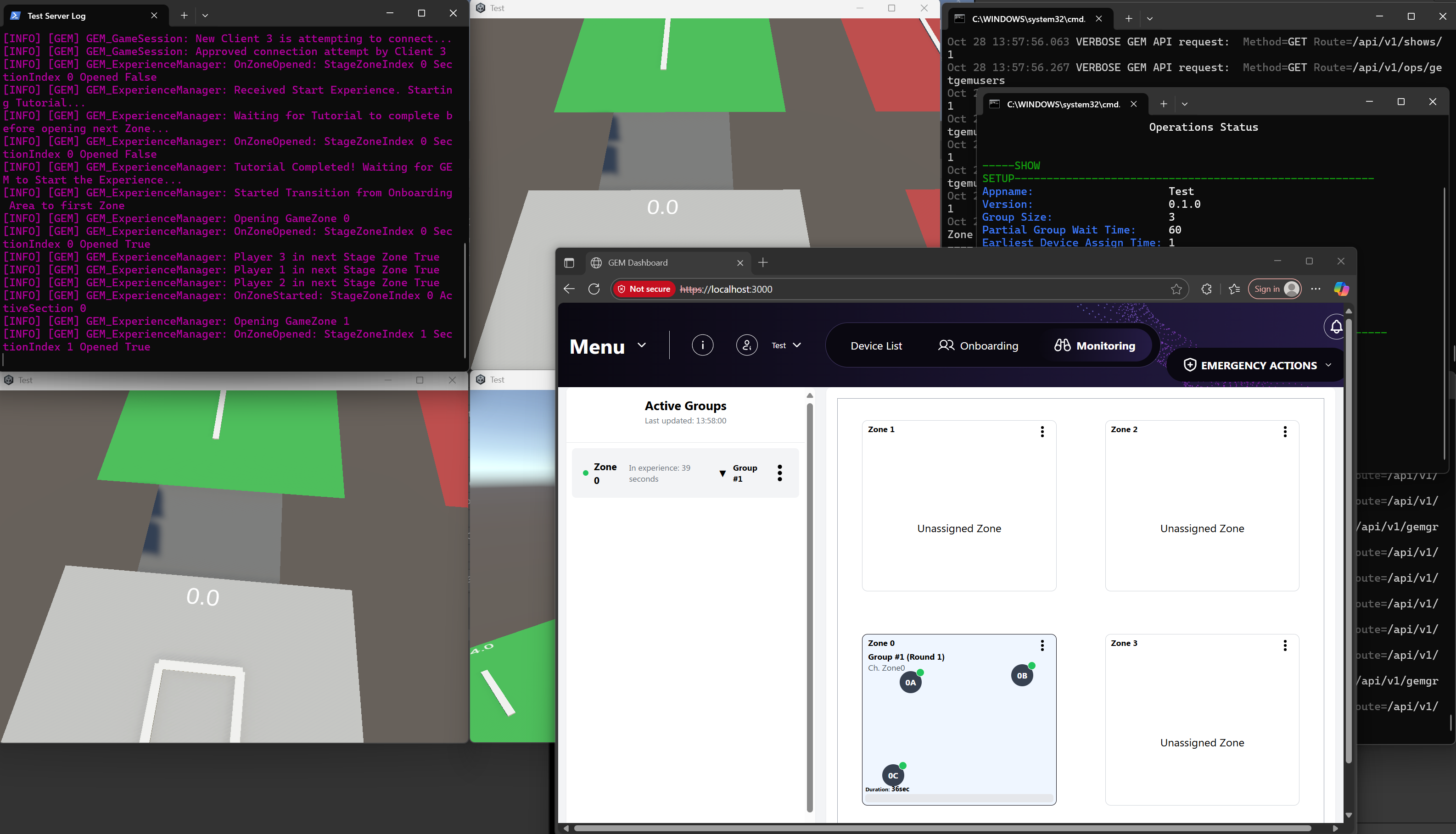 {width="1586" height="909"}
You are now able to perform GEM API calls such as emergency passthrough.
Starting another Group
You are able to launch more than one Group in this configuration, but it requires a few more steps.
- In the GEM Launcher window, expand the "Extras" tab and click "Launch Additional Windows Group". This will launch additional clients based on the selected client count.
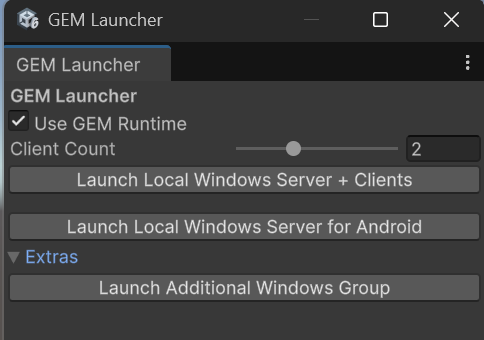 {width="242" height="170"}
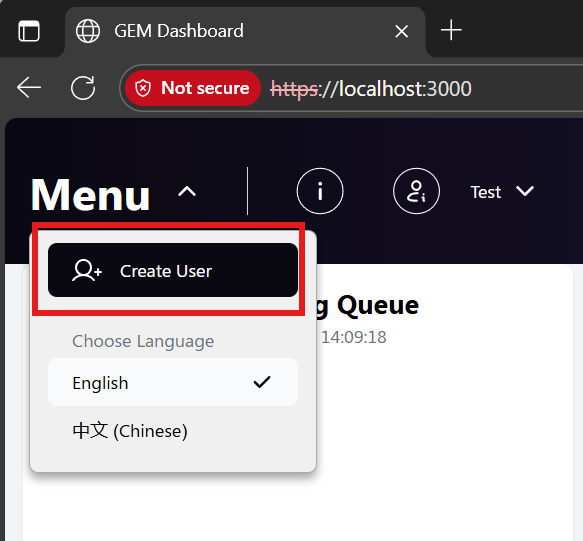
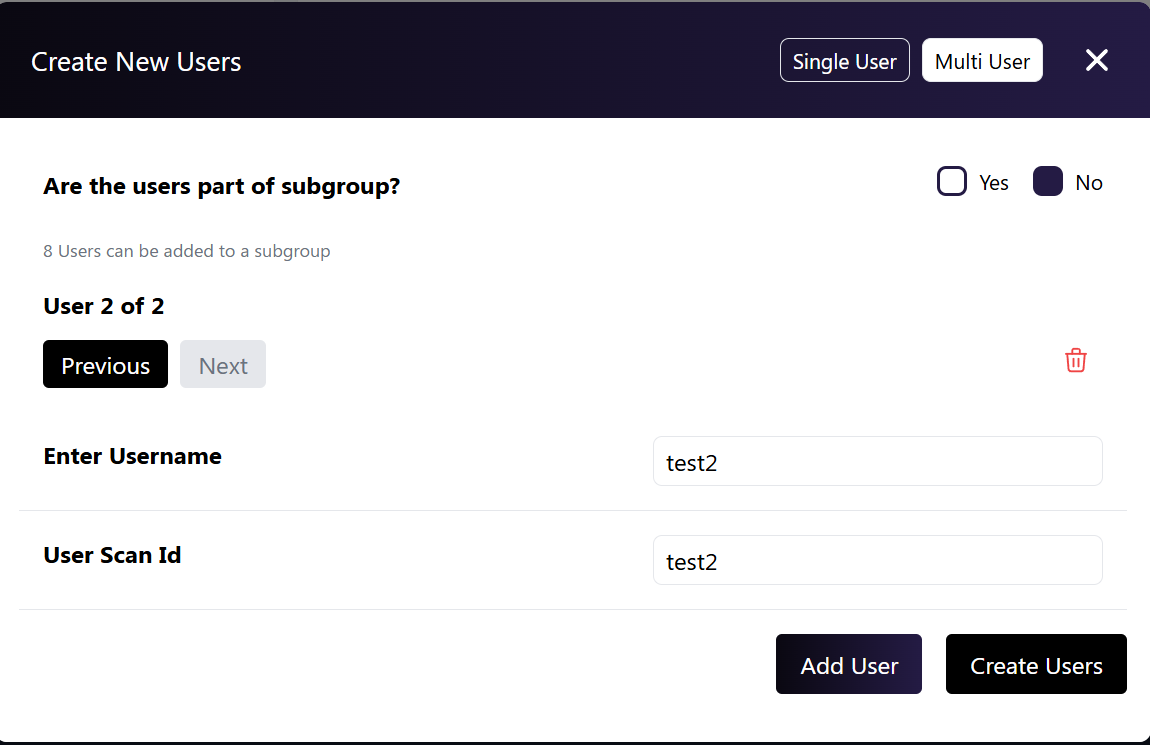
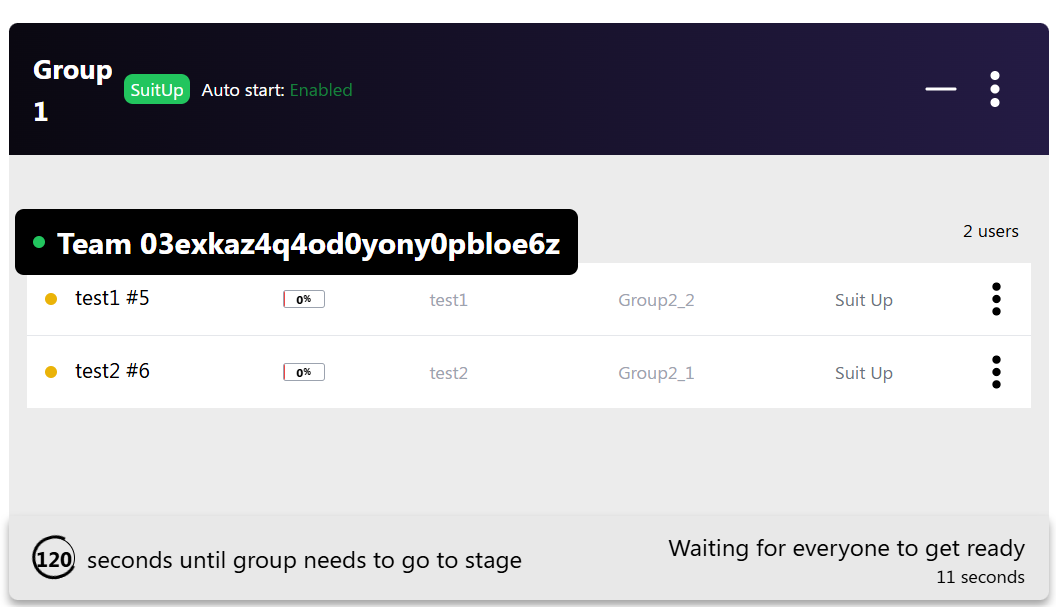
- In your Dashboard, create a new group with the amount of new players you have launched their devices for
 {width="292" height="271"}
 {width="575" height="373"}
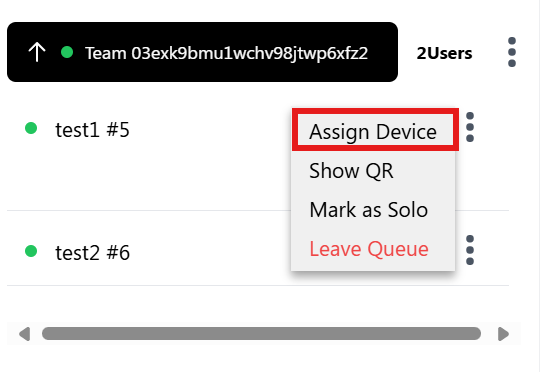
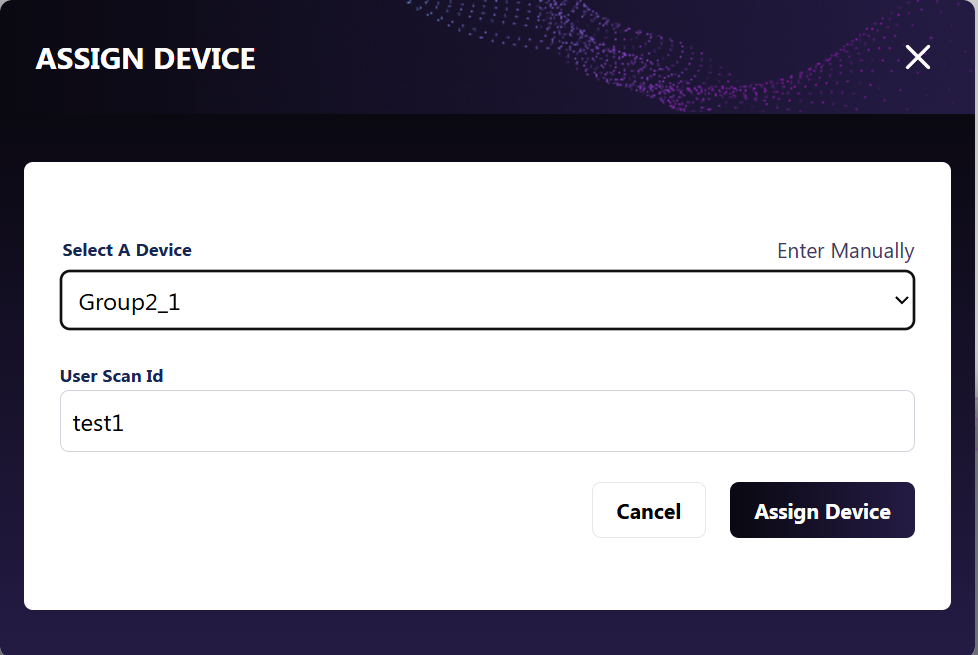
- Assign the newly launched devices to the newly created users.
 {width="270" height="186"}
 {width="489" height="328"}
 {width="528" height="304"}
After your new group has successfully entered the experience, you should now have two groups of players active on your GEM instance.
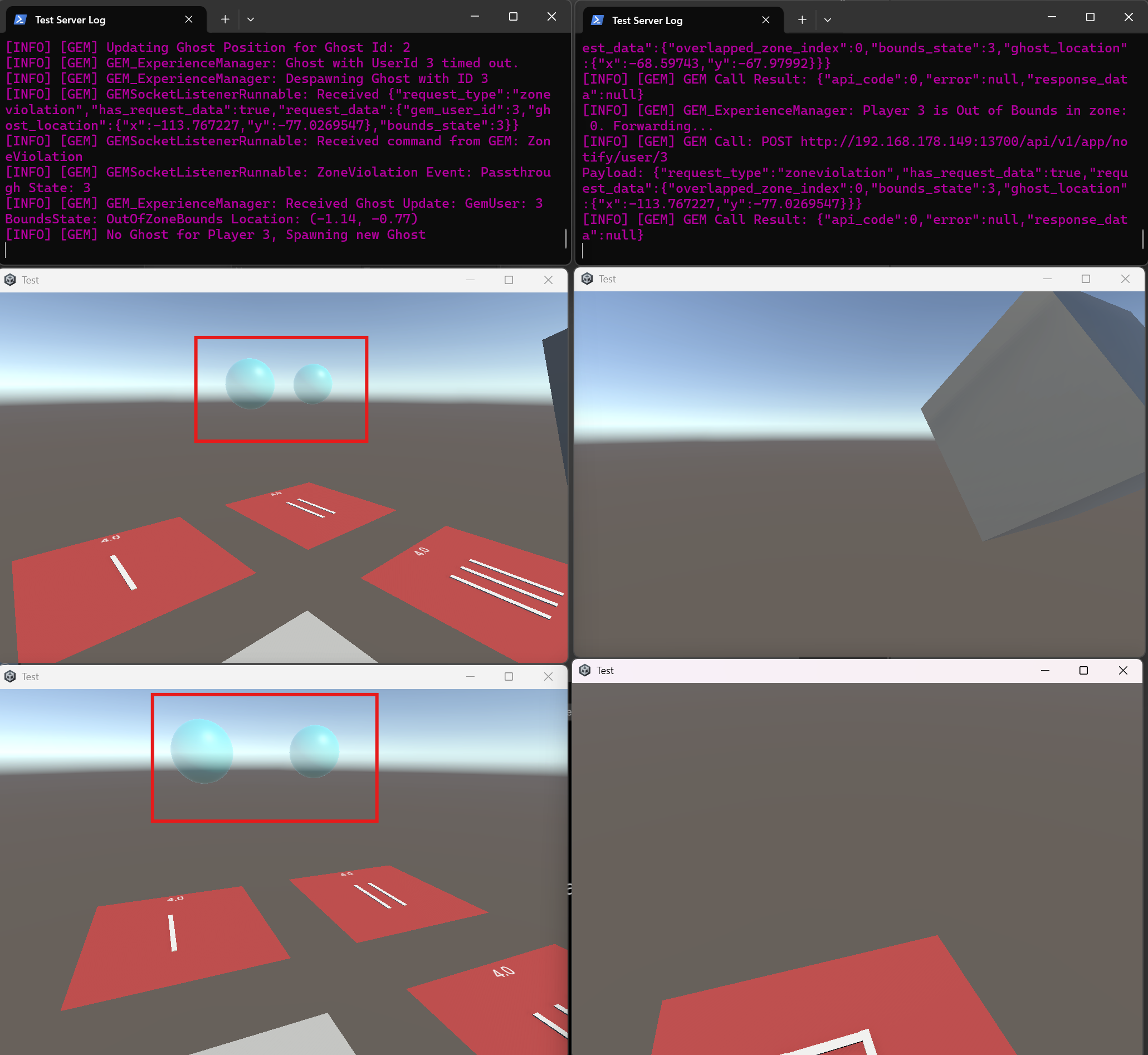
Now you can test multi-group functionality such as ghosts and zone blocking / unlocking. See screenshot below to see the two players from the right group intruding into the zones of the two players of the left group.
 {width="1031" height="947"}