Shipping a Experience
To create a Shippable Build for GEM, you must build the AndroidClient and at least one of the Servers (WindowsServer or LinuxServer) via the GEMBuilder. It is recommended to disable "Development Build" for shipping builds.
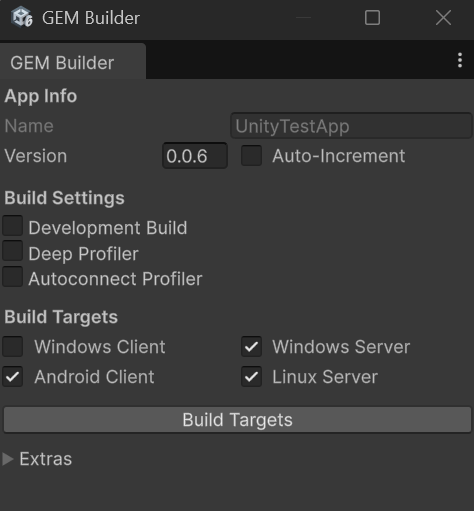 {width="237" height="256"}
After a successful build, a folder is generated at {Projectpath}/Builds/{version}/ with the following structure (depending on your selected targets)
- {version}/
- AndroidClient/
- {appname}.apk
- LinuxServer/
- {appname}_Data/
- libdecor-0.so.0
- libdecor-cairo.so
- UnityPlayer.so
- {appname}.x86_64
- WindowsClient/
- D3D12/
- MonoBleedingEdge/
- UnityTestApp_Data/
- UnityCrashHandler64.exe
- UnityPlayer.dll
- {appname}.exe
- {appname}_NoGEM.bat
- {appname}_WithGEM.bat
- WindowsServer/
- D3D12/
- MonoBleedingEdge/
- UnityTestApp_Data/
- UnityCrashHandler64.exe
- UnityPlayer.dll
- {appname}.exe
- UnityTestApp_NoGEM.bat
- SignupApp/ (optional)
- {background}.png
- {avatar1}.png
- {avatar2}.png
- gem_manifest.yaml
- AndroidClient/
For a deployable Build, at least one of the Server folders needs to be packaged together with the gem_manifest.yaml. It is important that the hierarchy stays in tact, since the gem_manifest.yaml points to the launch files relative to this structure. Additionally, the SignupApp folder should be included for server packages if it is generated.
Note: Unity generates the {appname}_BurstDebugInformation_DoNotShip/ folder for each build target. It is recommended to delete this folder before packaging/zipping the builds for shipping.